
Introduction
In the era of smart homes, smart speakers like the Google Nest Mini and Google Home Mini have become everyday digital assistants. They help us set reminders, control smart devices, answer questions, and more. But like all technology, they can run into issues of lag, disconnecting from Wi-Fi, not recognizing voice commands, or just misbehaving in general.
When traditional troubleshooting doesn’t work, a factory reset nest mini is often the most effective solution. It wipes the device clean, clears corrupted settings, and allows for a fresh start.
Here’s the catch: there are two ways to reset a Google Mini, depending on which version you own, the original Google Home Mini (1st Gen) or the newer Google Nest Mini (2nd Gen).
This comprehensive, step-by-step guide will walk you through how to factory reset Nest Mini, how it differs from the Home Mini, when you should do it, and how to re-setup the device afterward. Whether you’re gifting your Mini, troubleshooting bugs, or preparing for a network change, this guide has you covered. Let’s get your Mini performing like it’s brand new again.
Understanding Your Google Mini Version
The very first and most important step before performing a factory reset nest mini is understanding which Google Mini version you have.
Google has released two generations of this compact smart speaker:
- Google Home Mini (1st Gen)—Released in 2017
- Google Nest Mini (2nd Gen)—Released in 2019 as part of the Nest branding
They may look almost identical, but they differ significantly in how you reset them.
Key Differences Between the Two
| Feature | Google Home Mini | Google Nest Mini |
| Release Year | 2017 | 2019 |
| Power Port | Micro-USB | Proprietary barrel plug |
| Reset Button Location | Physical button under the base | No physical button (touch & hold) |
| Wall-Mount Option | No | Yes |
| Audio Quality | Basic | Improved bass and clarity |
How to Identify:
- Check the power port type: Micro-USB = Home Mini, round barrel connector = Nest Mini
- Look at the base: Nest Mini has a wall mount indentation and no visible button.
It is easier to follow the proper reset procedure if you are aware of your model. Let’s dive into the steps.
How to Factory Reset the First Generation Google Home Mini
If you own a Google Home Mini, resetting your device is simple thanks to its built-in Factory Data Reset (FDR) button.
Steps to Reset:
- Keep it plugged in the device must be powered on.
- Flip the device over
- Locate the small round reset button at the base.
- Press and hold it down with your finger.
- After 5 seconds: It will begin the reset process.
- After 10–15 seconds: You’ll hear a chime confirming reset.
- Release the button, the device will take about a minute to factory reset nest mini.
Quick Notes:
- Use moderate pressure while holding the button.
- Do not unplug during the reset.
- A restart does not equal a factory reset nest mini. Make sure you’re holding the correct button.
Once reset, your Mini will be ready for a new setup via the Google Home app.
How to Factory Reset Nest Mini (2nd Generation)
The Nest Mini has a touch-sensitive top, and the reset process uses this feature instead of a physical button.
Steps to Reset:
- Leave the device plugged in.
- Slide the mute switch (on the side) to disable the mic.
- LEDs on top will turn orange
- Press and hold the center of the speaker’s top surface.
- After ~5 seconds: The device will warn that you’re about to reset.
- Continue holding
- After ~10 more seconds: You’ll hear the factory reset nest mini confirmation.
- Release your touch and the reset is complete.
Tips for Success:
- Apply firm, steady pressure centered on the LED area.
- If nothing happens, re-check mute and power connections.
- Be patient, don’t release your finger after hearing the warning.
After rebooting, you’ll see a pulsing LED indicating it’s ready to be set up again using your phone.
When and Why Your Mini Needs to Be Factory Reset
Performing a factory reset nest mini should be a last resort, but it’s incredibly useful in several scenarios.
Common Reasons to Reset:
- Troubleshooting long-standing issues
- Fixing Wi-Fi or connection errors
- Changing your Google account
- Giving or selling your Mini
- Switching to a new home or Wi-Fi network
- Device isn’t responsive or hears you incorrectly
Situations That DON’T Require a Factory Reset:
- Temporary lag or glitches → Try restarting.
- Music not working → Check app permissions.
- Can’t find device in app → Reboot router and Mini.
Performing a factory reset nest mini wipes everything networks, settings, routines, and associations so it’s like getting your Mini straight from the box again.
Things to Do Before You Reset (Checklist)
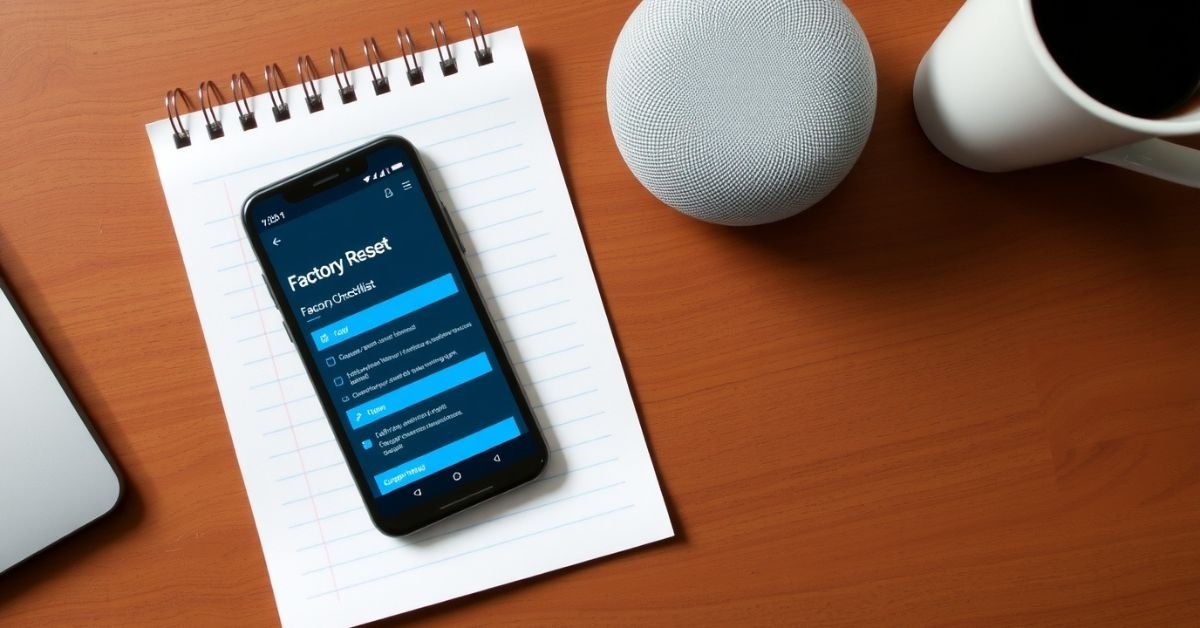
Before hitting that reset button (or touch sensor), take a moment to back up and prepare. This ensures your post-reset setup runs smoothly.
Pre-Reset Checklist:
- Note your Wi-Fi network name and password.
- List your linked smart home devices
- Take screenshots of routines and Google Assistant settings
- Unlink music, video, or calendar services
- Take the gadget out of the Google Home app.
- Go to: Device → Settings → “Remove Device”
Pro Tip: If you’re only troubleshooting Wi-Fi, try rebooting your router and moving the Mini closer instead of resetting first.
Preparing properly protects your preferences and saves lots of time later on.
How to Set Up Your Mini After a Factory Reset
Once your Mini is back to factory settings, you’ll need to set it up from scratch using the Google Home app.
Setup Steps:
- Download or open the Google Home app
- Tap “+” → Setup device → New device
- Choose your Home
- Wait for the app to detect your MINI.
- Connect to your Wi-Fi network
- Link your Google Account
- Customize preferences:
- Voice Match
- Personal results
- Audio Services (Spotify, YouTube Music)
- Default speaker groups
Tips:
- Enable Bluetooth & Location on your phone
- Keep the Mini close during setup.
- Already seeing the Mini setup notification? Tap it to start.
Once completed, you’ll be able to start using your Mini again with full functionality.
Common Problems and Troubleshooting During Reset
Even with simple steps, things don’t always go as planned. Below are the most common hiccups and their fixes.
Troubleshooting Table
| Problem | Cause | Fix |
| Reset not working | Finger not in correct spot (Nest Mini) | Press center firmly |
| No confirmation sound | Mic switch not turned off | Mute first |
| Not showing up in app | Phone/Device not on same network | Reboot router/phone |
| Reset button doesn’t respond | Holding too short or too light | Hold minimum 15 sec |
| Mini stuck in boot loop | Firmware glitch | Contact Google Support |
Comparing the Two Reset Methods: Home Mini vs. Nest Mini
Here’s a side-by-side comparison for visual learners:
| Feature | Google Home Mini | Nest Mini |
| Reset Method | Physical Button | Touch & Hold |
| Button Location | Bottom of device | Top center (touch-only) |
| Reset Sound | Yes, with chime | Yes, after ~10 sec |
| LED Feedback | Yes | Yes |
| Mic Switch Required? | No | Yes (must turn mic off first) |
| Setup After Reset | Required via app | Required via app |
This comparison helps you double-check if you’re following the right method for your device model.
Real-Life Use Cases: When a Reset Saved the Day
Let’s walk through a couple of real user scenarios.
Case Study 1: Voice Recognition Failure
Problem: Google stopped responding to one user’s voice
Tried: Restart, Voice Match re-training
Solution: Factory Reset Nest Mini
Result: Fixed instantly after re-setup
Case Study 2: New Wi-Fi Network
Issue: User moved apartments new router, old settings
Tried: Reconnect via app; device not found
Solution: Factory reset Mini, start setup again
Result: Connected seamlessly to new Wi-Fi
Best Practices to Avoid Frequent Factory Resets
You shouldn’t need to factory reset often. Follow these best practices to keep your Mini running smoothly.
Maintenance Tips:
- Keep the firmware up to date (automatic in Google Home)
- Reboot occasionally via the app
- Maintain a strong Wi-Fi signal
- Clear dust from speaker and mic area
- Use a surge protector to prevent power issues
Monthly routine:
- Soft reset (reboot)
- Review routines and integrations
- Test voice response accuracy
Regular care keeps your Mini responsive and reliable while reducing the need for frequent resets.
FAQs
Does a factory reset delete my Google Account?
No, it just unlinks your Mini from the account. Your account itself is unaffected.
Can I reset the Mini using the Google Home app?
No, a factory reset nest mini must be performed physically on the device itself.
Can I reset my Mini if it won’t power on?
No. If there’s no power, the reset won’t work. Try changing outlets or power adapters.
How long does the reset take?
About 1 minute, but full setup afterward takes 5–10 minutes.
Do I have to remove the Mini from the Google Home app before resetting?
It’s not mandatory but recommended for a clean re-setup later.
Conclusion
Factory resetting your Nest Mini or Home Mini is a powerful, often necessary process that can breathe new life into your smart speaker. Whether you’re troubleshooting issues, starting fresh in a new location, or handing the device over to someone else, a fast, clean reset helps ensure a seamless user experience.
The key is knowing which model you own and following the correct procedure: physical button for Home Mini or touch-and-hold method for Factory Reset Nest Mini.
Before resetting, always prepare properly to avoid losing important routines and device links. Afterward, take a few minutes to reconnect everything through the Google Home app to get back to enjoying your smart assistant.